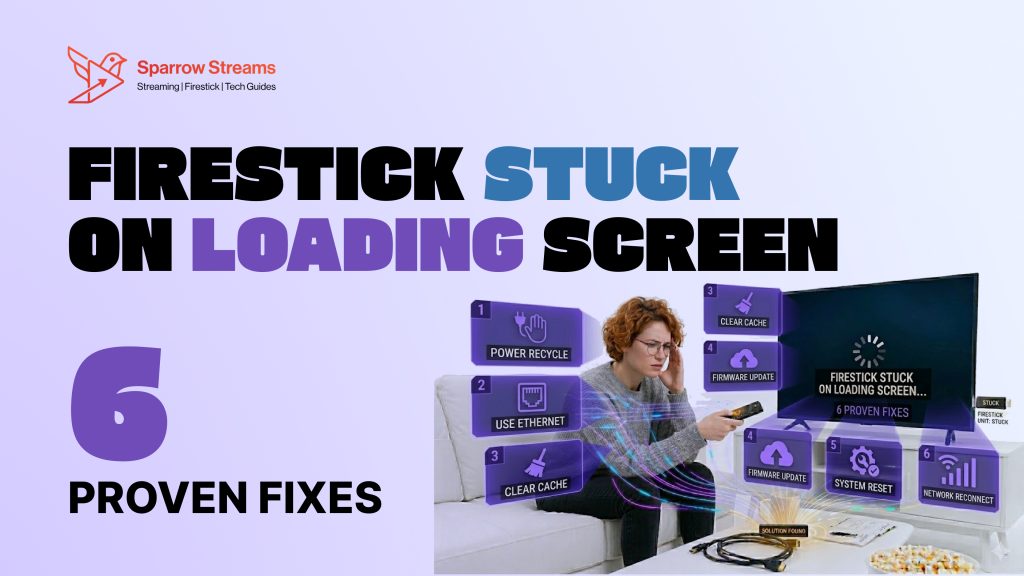
Nothing is more frustrating than sitting down to watch your favorite show and your Firestick stuck on the loading screen. You press buttons, wait and wait, but nothing happens. The logo just sits there and refuses to move.
The good news is that this is one of the most common Firestick problems and in most cases you can fix it yourself in just a few minutes. In this guide we will walk you through every possible reason why your Firestick is stuck on the loading screen and give you 6 proven fixes that actually work. Whether you have a Firestick 4K, Lite, or Max, these solutions will work for all models. Let’s get your Firestick back to normal.
Why is Your Firestick Stuck on the Logo? (Common Causes)
Before jumping into the fixes it helps to understand why this problem happens in the first place. Here are the most common reasons your Firestick gets stuck on the loading screen.
Your Firestick is not getting enough power. This is the number one cause. If the power adapter is weak or you are using a TV USB port to power your device it will struggle to boot up properly and freeze on the logo screen.
Your HDMI connection has a problem. A loose HDMI cable, a faulty HDMI port, or a bad HDMI extender can stop your Firestick from communicating with your TV. When this happens the device gets confused and stays stuck on the startup screen.
Your Firestick is overheating. If your device runs too hot it will slow down or freeze completely during startup. Overheating is more common when the Firestick is placed in a tight space with no airflow.
The cache and app data is corrupted. Over time your Firestick stores a lot of temporary data. When this data gets corrupted it can prevent the device from loading properly.
A firmware update went wrong. Sometimes a software update does not install correctly. When this happens your Firestick can get stuck in a boot loop or freeze on the logo screen every time you turn it on.
The remote is not responding. If your remote batteries are dead or the remote is not paired you may think the device is frozen when actually it is just not responding to your commands.
6 Ways to Fix Firestick Loading Problems
Now let’s get into the actual fixes. Start from Fix 1 and work your way down. Most people solve their problem within the first two or three fixes.
Fix 1 Power Cycle via Remote Shortcut
The very first thing you should try is a simple restart. But instead of just unplugging the device use the remote shortcut to do a proper power cycle.
Press and hold the Select button and the Play/Pause button on your Firestick remote at the same time. Hold them for about 5 seconds until the screen goes black and the device restarts. This is much more effective than just pulling the plug because it properly shuts down all running processes before restarting.
If the remote shortcut does not work then unplug your Firestick from the power outlet completely. Do not just remove it from the TV. Wait for a full 60 seconds and then plug it back in. This gives the device enough time to fully discharge and clear any temporary errors that were causing the freeze.
[Insert screenshot here: Remote showing Select and Play/Pause buttons highlighted]
Fix 2 Use the Official Power Adapter
This fix solves the problem for a lot of people and it is something most users never think about. Your Firestick needs a steady and sufficient power supply to boot up correctly. If it is not getting enough power it will freeze on the loading screen every time.
First make sure you are using the official Amazon power adapter that came in the box with your Firestick. Third party adapters often do not provide enough power even if they look identical to the original.
Second and this is very important never power your Firestick using the TV USB port. TV USB ports do not provide enough power for the Firestick to work properly. Always plug the power adapter directly into a wall outlet.
If your original adapter is lost or broken make sure you buy an Amazon certified replacement. A cheap generic adapter can cause the same problem over and over again.
[Insert screenshot here: Official Amazon power adapter plugged into wall outlet]
Fix 3 Switch HDMI Ports & Use Extender
If your Firestick is getting enough power but still stuck on the loading screen the problem might be your HDMI connection. This is easier to fix than most people think.
Start by removing your Firestick from the current HDMI port and plugging it into a different HDMI port on your TV. Every TV has at least two or three HDMI ports. After switching ports make sure you select the correct HDMI input on your TV using the source or input button on your TV remote.
If you are currently using an HDMI extender cable try removing it and plugging the Firestick directly into the TV. Sometimes these extender cables go bad and interrupt the signal.
On the other hand if your Firestick is plugged directly into the TV and sitting very close to the TV body try using the HDMI extender. Amazon actually includes one in the box for this reason. When the Firestick is pressed flat against the TV it can overheat faster and also receive interference. The extender gives it a little space and better signal.
[Insert screenshot here: Firestick connected via HDMI extender away from TV panel]
Fix 4 Clear System Cache (If Accessible)
Over time your Firestick accumulates a lot of cached data from apps and system processes. When this cache becomes too large or gets corrupted it can cause your device to slow down or get stuck during startup.
If your Firestick is loading enough to reach the settings screen you can clear the cache manually. Go to Settings and then select Applications. From there go to Manage Installed Applications and open each app one by one. Select Clear Cache for every app you see. This removes all the stored temporary data and gives your Firestick a fresh start without deleting your personal data or login information.
After clearing the cache for all apps restart your device and check if the loading screen problem is fixed. Many users find that this one step completely solves the issue especially if the device was working fine before and suddenly started freezing.
[Insert screenshot here: Firestick Settings showing Applications and Clear Cache option]
Fix 5 Forced Firmware Update
Sometimes your Firestick gets stuck on the loading screen because it has a buggy software version installed. Amazon regularly releases firmware updates that fix these kinds of bugs. If your device did not update properly the last time forcing a manual update can solve the problem.
If your Firestick is loading enough to reach the home screen go to Settings and then select My Fire TV. From there choose About and then click on Check for Updates. If an update is available install it and let the device restart on its own.
If your Firestick is completely stuck and cannot reach the settings screen try leaving it connected to power and a strong WiFi network for a few hours. Amazon sometimes pushes automatic updates overnight. When the device receives and installs the update automatically it often fixes the boot problem on its own.
[Insert screenshot here: My Fire TV Settings showing Check for Updates option]
Fix 6 Factory Reset (The Last Resort)
If none of the above fixes have worked a factory reset is your final option. This will erase everything on your Firestick and return it to the original state it was in when you first bought it. You will need to set it up again from scratch and log back into your Amazon account.
If your Firestick can still reach the settings screen go to Settings then My Fire TV and select Reset to Factory Defaults. Confirm your choice and let the device do the rest.
If your Firestick is completely stuck and cannot reach settings you can use the remote shortcut. Press and hold the Back button and the Right side of the navigation ring at the same time for about 10 seconds. A factory reset prompt should appear on screen. Select Continue to begin the reset.
After the reset is complete set up your Firestick fresh and your loading screen problem should be completely gone.
[Insert screenshot here: Factory Reset confirmation screen on Firestick]
Model-Specific Troubleshooting (4K, Max, Lite)
Different Firestick models can have slightly different behaviors when stuck on the loading screen. Here is what you need to know for each model.
If you have a Firestick 4K or Firestick 4K Max power supply is the most critical factor. These models use more power than regular Firesticks because they process 4K video. Always use the official 9W power adapter that came with these models. A standard 5W adapter will not be enough and will cause freezing on startup.
If you have a Firestick Lite the most common cause of the loading screen issue is HDMI compatibility. The Lite model does not support HDCP 2.2 on all TVs which can cause it to freeze. Try plugging it into a different HDMI port or using the HDMI extender that came in the box.
For older Firestick models like the 2nd or 3rd generation outdated firmware is usually the main culprit. These older devices sometimes stop receiving updates smoothly. If your old Firestick is stuck leave it connected overnight so it can receive any pending updates automatically.
For all models if the device is still under warranty and nothing is working contact Amazon Support directly. The Firestick 4K models come with a one year warranty and Amazon is usually very helpful with replacements if the device is genuinely defective.
Prevention How to Avoid Firestick Overheating
Once you fix your Firestick you want to make sure this problem never comes back. The good news is that with a few simple habits you can keep your Firestick running smoothly for years.
Always use the official Amazon power adapter and plug it into a wall outlet. This one habit alone prevents the majority of loading screen issues that people experience.
Give your Firestick room to breathe. Do not keep it inside a closed cabinet or cramped space. Electronics need airflow to stay cool and your Firestick is no different.
Restart your Firestick at least once a week. Just like a computer your Firestick benefits from a regular restart. It clears temporary files refreshes the memory and keeps the system running smoothly.
Clear your app cache once a month. You do not need to do this every day but doing it monthly prevents the buildup of corrupted data that leads to freezing and loading problems.
Do not install too many apps. Every app you install takes up storage space and memory. When your Firestick runs low on storage it starts struggling to perform basic tasks like booting up. Remove apps you no longer use and keep your device clean.
Keep your firmware updated. Always allow updates to install when they are available. These updates fix bugs and improve performance. Never disconnect your Firestick while an update is installing.
Conclusion
A Firestick stuck on the loading screen is frustrating but it is almost always fixable. In most cases a simple restart or power adapter change is all you need. If the problem is deeper clearing the cache, forcing a firmware update, or doing a factory reset will take care of it.
The key is to go through the fixes one by one and be patient. Rushing through them or skipping steps can make it harder to identify the real cause. Follow this guide from the beginning and your Firestick will be back to normal before you know it.
If you are also dealing with other Firestick problems we have got you covered. Check out these related guides that will help you get the best experience from your device.
If your Firestick screen has gone completely black and you are not sure why then read our detailed guide on FireStick Black Screen Fix What Actually Works in 2026 where we cover every possible cause and solution step by step.
Is your Firestick feeling slower than usual? Apps taking too long to open and videos buffering constantly? Our guide on Firestick Running Slow? Speed It Up in 5 Minutes will show you exactly how to make your device feel like new again without any technical skills.
And if your Firestick keeps freezing in the middle of shows or apps you need to read Firestick Keeps Freezing? Here’s Exactly Why and How to Fix It Fast (2026) where we break down all the root causes and give you fast reliable solutions that actually work.