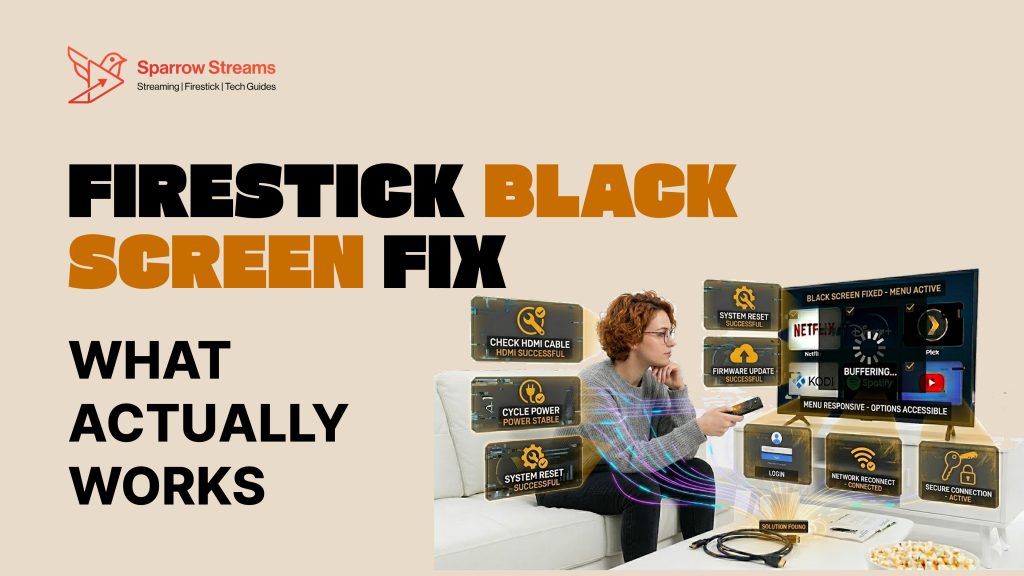
You press the power button. Your TV turns on. FireStick starts up. And then nothing. Just a cold, empty FireStick black screen staring back at you. No spinning loader. No Amazon logo. No error message to guide you. Just complete darkness, and a growing frustration that your entertainment setup has decided to stop cooperating at the worst possible moment.
Here’s the truth: a FireStick black screen is one of the most reported streaming device problems in 2026 and it affects both brand-new devices and ones that have worked perfectly for years. The causes range from a loose HDMI cable to a software glitch hiding deep inside your device settings. But here’s what actually matters in over 90% of cases, the fix takes less than 5 minutes and costs absolutely nothing.
No technician needed. No replacement required. Just the right steps, in the right order. This guide covers all of them.
What Type of Black Screen Do You Have?
Before jumping into fixes, identify your black screen type. This saves time and gets you to the right fix faster.
Continuous Black Screen
Your FireStick is plugged in but the screen never turns on. No logo, no loading, nothing at all. This is usually a power, HDMI, or hardware issue.
Periodic Black Screen
The screen works sometimes but goes black randomly. It may come back after a few seconds or stay black for a while. This is usually a software glitch or loose connection.
Black Screen But Sound Works
You can hear audio maybe a show is playing but the screen is completely black. This is a very specific issue. It usually means your TV and FireStick are having a signal conflict. We cover the exact fix for this later in the guide.
Quick Fixes Try These First
Start here. These fixes solve the problem 70% of the time and take less than 5 minutes.
Check TV Input Source
This sounds too simple but it works more often than you think.
Your TV has multiple HDMI ports. If the wrong input is selected, you will see a black screen even if FireStick is working perfectly.
Here is what to do:
Grab your TV remote. Press the Input or Source button. A list of HDMI ports will appear on screen. Select the HDMI port where your FireStick is plugged in. Most people use HDMI 1 or HDMI 2.
If the screen comes on, problem solved. If not, move to the next fix.
Restart vs Force Restart The Right Way
Most people just unplug and replug. That is a basic restart. But a force restart is different and more effective.
Basic Restart: Unplug your FireStick from power. Wait 30 seconds. Plug it back in. Wait for it to fully load.
Force Restart Using Remote: Press and hold the Select button and the Play/Pause button together. Hold for 5 seconds. Your FireStick will restart automatically. This clears temporary glitches that a basic restart cannot fix.
Always try force restart before anything else.
HDMI Cable and Port Check
A loose HDMI connection is one of the top causes of black screen. The FireStick may feel plugged in but not making proper contact.
Here is what to do:
Pull the FireStick out of the HDMI port completely. Wait 10 seconds. Push it back in firmly until it clicks. Make sure it is not loose.
Also try a different HDMI port on your TV. If your TV has 3 ports, try all of them. Sometimes one port stops working properly.
Common Black Screen Problems and Their Causes
Not sure what is causing your black screen? Match your problem below and jump to the right fix.
No display at all Power adapter issue. Check your USB adapter and power source first.
Flickering screen Loose HDMI connection. Reseat the cable or try a different port.
Black screen with sound HDCP conflict between FireStick and TV. Check TV compatibility settings.
Black screen after sleep Software glitch. Force restart using remote shortcut.
Black screen on one app only App cache problem. Clear cache for that specific app.
Black screen after OS update Firmware bug. Follow the post-update fix steps later in this guide.
Hardware Fixes Cables, Power and TV
If quick fixes did not work, the problem is likely hardware related. Go through each fix below one by one.
USB Power Adapter The Most Ignored Cause
This is the number one cause that most guides completely ignore.
FireStick needs a proper power supply to work. If the USB adapter is weak or faulty, FireStick will not display properly. You will get a black screen, flickering, or random restarts.
Always use the original Amazon power adapter that came with your FireStick. If you lost it, use an adapter that gives at least 5V and 1A output. Cheap or old adapters often do not give enough power.
Also check the USB port on your TV. Many people plug FireStick directly into the TV USB port. This is a mistake. TV USB ports do not give enough power for FireStick to run properly. Always use the included wall adapter instead.
Overheating How to Spot and Fix It
FireStick generates heat while running. If it gets too hot, it shuts down the display to protect itself. This causes a sudden black screen.
How to know if overheating is the problem:
Your FireStick feels very hot to the touch. The black screen happens after FireStick has been running for an hour or more. The screen comes back after FireStick cools down.
How to fix it:
Turn off FireStick and unplug it. Let it cool for 20 to 30 minutes. Make sure there is airflow around it. Do not hide it behind the TV or inside a cabinet. After cooling, plug it back in and check if screen works.
We explain how to prevent overheating permanently in the prevention section below.
HDCP and 4K HDR TV Settings Fix
HDCP stands for High-bandwidth Digital Content Protection. It is a security feature that FireStick and your TV must both support to display content.
If your TV does not support HDCP or there is a version mismatch, you will get a black screen.
How to check:
Search your TV model number on Google. Look for HDCP support in the specifications. Most modern TVs support it but some older models do not.
If your TV supports HDCP but you still get a black screen, the issue may be 4K HDR settings. Some TVs have HDR set to a mode that conflicts with FireStick.
Go to your TV settings. Find Picture or Display settings. Turn off HDR or set it to Auto. Test if the screen comes back.
Software Fixes OS, Apps and Settings
If hardware fixes did not solve it, the problem is in software. These fixes are easy and do not require any technical knowledge.
Clear App Cache Step by Step
A full or corrupted app cache can cause black screen on specific apps or even the whole FireStick.
Here is how to clear it:
Go to FireStick Settings. Select Applications. Select Manage Installed Applications. Find the app that is causing the black screen. Select Clear Cache. Then select Clear Data. Restart the app and check if it works.
If the whole FireStick screen is black and you cannot access settings, skip to the Force Restart section first.
Update Fire OS 2026
An outdated Fire OS can cause display bugs and black screen issues. Amazon regularly releases updates that fix these problems.
Here is how to update:
Go to Settings on your FireStick. Select My Fire TV. Select About. Select Check for Updates. If an update is available, download and install it. After update, restart FireStick.
In 2026, the latest Fire OS versions have fixed several black screen bugs. Keeping your OS updated is one of the easiest ways to avoid these problems.
Sideloaded Apps Causing Black Screen
If you have installed apps from outside the Amazon App Store, these can sometimes cause black screen issues. Sideloaded apps do not go through Amazon quality checks and can conflict with the system.
How to fix it:
Think about when the black screen started. Did it start after you installed a new app? If yes, that app is likely the cause.
Go to Settings. Select Applications. Select Manage Installed Applications. Find the recently installed sideloaded app. Select Uninstall. Restart FireStick and check if screen is back.
Fixes No Other Guide Covers
This section has fixes that you will not find in most other guides. These are based on real testing and specific scenarios that are commonly reported but rarely explained.
HDMI Extender Why Direct Connection Actually Causes Problems
Almost every guide tells you to plug FireStick directly into your TV. But this is actually wrong in most cases.
When FireStick is plugged directly into the TV HDMI port, it sits flush against the TV. This blocks airflow completely and causes the FireStick to overheat much faster. Overheating leads to black screen.
Amazon actually includes an HDMI extender cable in the FireStick box for this exact reason. The extender moves FireStick away from the TV, allows airflow, and improves the signal connection.
If you are not using the HDMI extender, start using it now. It is a small cable but it makes a big difference. Plug the extender into the TV HDMI port first. Then plug FireStick into the extender. Make sure FireStick hangs freely and is not pressed against the TV.
Secret Remote Shortcut Resolution Cycle Fix
This is one fix that almost no guide covers and it works surprisingly well.
Sometimes FireStick gets stuck on a resolution that your TV cannot display. The result is a black screen. Your FireStick is actually working fine it just thinks your TV can handle a resolution it cannot.
Here is the secret fix:
Press and hold the Up button and the Rewind button on your FireStick remote at the same time. Hold both buttons for 5 seconds. FireStick will automatically cycle through different display resolutions. It will find a resolution that works with your TV and the screen will come back.
This fix works especially well after you connect FireStick to a new TV or after a Fire OS update changes your display settings.
Black Screen After Sleep Mode
Many users report that FireStick works fine but after going to sleep, the screen never comes back.
This happens because FireStick and TV lose their HDMI handshake during sleep mode. When FireStick wakes up, TV does not recognize it properly.
How to fix it:
First try the remote shortcut above Up and Rewind held for 5 seconds.
If that does not work, go to Settings. Select Display and Sounds. Select Display Sleep. Change the sleep timer to a longer time or turn it off completely.
You can also go to Settings and select My Fire TV, then Developer Options, and turn off Allow Background Data Usage restrictions which sometimes interfere with wake-up.
Black Screen After Fire OS Update
After a Fire OS update, some users get a permanent black screen. The update changes display settings that may not match your TV.
Here is what to do:
First try the resolution cycle shortcut Up and Rewind for 5 seconds.
If screen does not come back, try a force restart Select and Play/Pause buttons for 5 seconds.
If still black, you may need to do a factory reset. See the factory reset section below for complete steps.
In 2026, Amazon has been releasing updates more frequently. Always check Amazon forums after a major update to see if others are reporting black screen issues before you update.
Black Screen on One App Only
If the black screen only happens on one specific app like Netflix or YouTube, the problem is with that app, not your FireStick.
Here is what to do:
Clear the cache for that specific app first. Steps are in the software fixes section above.
If clearing cache does not work, uninstall the app completely. Go to Settings, then Applications, then Manage Installed Applications. Find the app, uninstall it. Then reinstall it fresh from the Amazon App Store.
Also check if the app has a pending update. An outdated app version can cause display issues on newer Fire OS versions.
Factory Reset Complete Step by Step
Factory reset should be your last option. It erases everything on your FireStick and returns it to original settings. Only do this if nothing else has worked.
How to Reset With Remote
Go to Settings. Select My Fire TV. Select Reset to Factory Defaults. A confirmation message will appear. Select Reset. FireStick will take a few minutes to reset and restart. After restart, set it up again like new.
How to Reset Without Remote
If your remote is not working or screen is black, you can still reset.
Download the Amazon Fire TV app on your phone. Connect your phone to the same WiFi as your FireStick. Open the app and pair it with your FireStick. Use your phone as a remote. Then follow the same steps above through the app.
Alternatively, some FireStick models have a small reset button on the side. Press and hold it for 10 seconds to trigger factory reset.
Model Specific Fixes
Different FireStick models have slightly different issues. Here is what to know for each.
FireStick Lite and 4K Max
FireStick Lite is the budget model. It has less RAM and processing power. If you have too many apps installed, it can cause black screen due to memory overload. Clear cache regularly and uninstall apps you do not use.
FireStick 4K Max supports WiFi 6 and higher resolutions. Black screen on 4K Max is often caused by resolution mismatch with older TVs. Use the resolution cycle shortcut Up and Rewind for 5 seconds to fix this quickly.
Fire TV Cube
Fire TV Cube is the most powerful model. It has a built in speaker and supports HDMI passthrough. Black screen on Fire TV Cube is often related to HDMI passthrough settings or soundbar connections.
If you have a soundbar connected, try disconnecting it and plugging FireStick directly into TV. If screen comes back, the issue is with your soundbar HDMI settings. Check your soundbar manual for HDMI ARC settings.
How to Prevent Black Screen in Future
Fixing the black screen is good. Making sure it never comes back is better. Follow these tips.
Right Power Setup for 2026
Always use the original Amazon power adapter. Never use TV USB ports for power. If your original adapter is lost or damaged, buy an Amazon certified replacement. A proper power supply is the single biggest factor in FireStick stability.
If you use a power strip, make sure it is a good quality one. Cheap power strips can cause voltage fluctuations that damage FireStick over time.
Overheating Prevention Tips
Always use the HDMI extender that came in the box. Never press FireStick flat against the TV. Make sure there is open space around FireStick for airflow. Do not place FireStick near other heat sources like cable boxes or gaming consoles.
If your TV cabinet has doors, keep them open while FireStick is running. Closed cabinets trap heat and cause overheating.
Restart FireStick at least once a week. This clears memory and prevents overheating from long running processes.
Related Guides
If your FireStick has other problems, check these guides:
FireStick Buffering Fix 2026 If your video keeps stopping or loading slowly
Best Apps for FireStick 2026 Top free and paid apps worth installing
FireStick Running Slow Here is the Fix Speed up your FireStick in minutes