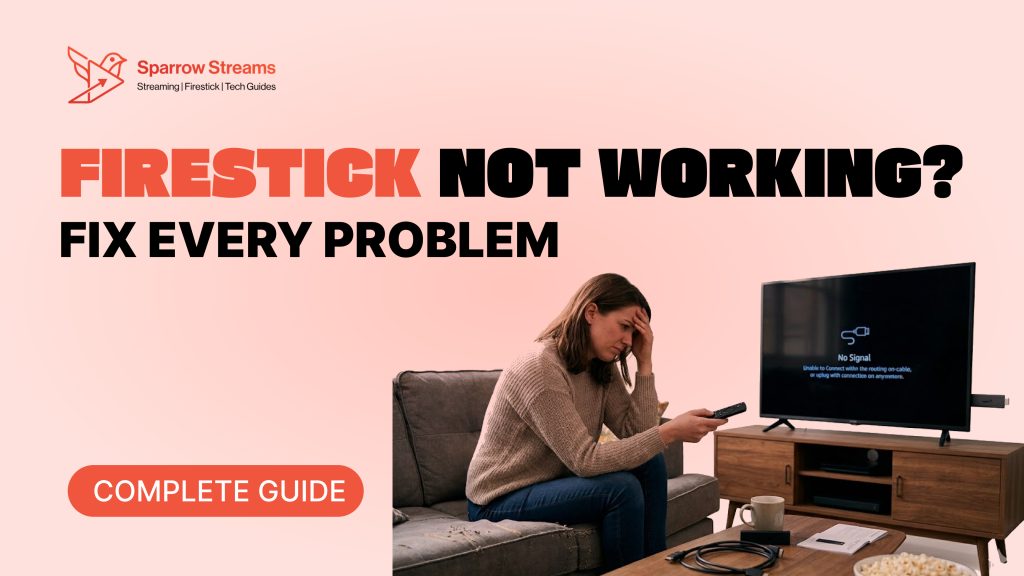
Is your Firestick not working and showing a black screen? Is it buffering every few seconds? Or maybe the remote just stopped working out of nowhere? Whatever the problem is, you are in the right place. This guide covers every common Firestick problem with simple, tested fixes. No tech experience needed. Just find your problem and get back to streaming in minutes.
Quick Fixes to Try First
Before anything else, try these four steps. They fix most Firestick problems in under two minutes.
60-Second Restart Method
Unplug your Firestick power cable from the wall, wait 30 full seconds, then plug it back in. A simple restart fixes most freezing, black screen, and slow performance issues instantly.
Check Your HDMI Connection
Pull the Firestick out of the HDMI port and push it back in firmly. Then press Input or Source on your TV remote and select the correct HDMI port. If your TV has multiple ports, try a different one.
Check Your Power Source
Always use the original Amazon power adapter and plug directly into a wall outlet. Never plug into your TV’s USB port it does not deliver enough power and causes random problems.
Replace Remote Batteries
Open the battery cover, remove old batteries, and insert 2 fresh AAA batteries. This fixes remote problems 50% of the time before anything else.
Firestick Power & Display Problems
Firestick Won’t Turn On
First check that the power cable is firmly plugged into both the Firestick and the wall outlet. Make sure your TV is on the correct HDMI input by pressing Source on your TV remote. If nothing appears, hold the Select and Play/Pause buttons together for 10 seconds to force restart. Still nothing? Try plugging into a different HDMI port on your TV.
Firestick Black Screen Fix
A black screen is almost always caused by the wrong HDMI input or a loose connection. Unplug the Firestick and plug it back in firmly. Press Input on your TV remote and cycle through the HDMI options. If the screen is still black, unplug the power cable for 30 seconds and try again. Make sure you are using the original Amazon power adapter.
Firestick Stuck on Amazon Logo
Unplug the power cable and wait a full 60 seconds before plugging back in. If it gets stuck again, hold Select and Play/Pause for 10 seconds to force restart. If your Firestick got stuck right after an update, wait 15 minutes before doing anything updates sometimes take longer than expected to finish.
Firestick Not Detected by TV
This is an HDMI handshake problem. Unplug the Firestick completely and try a different HDMI port. Remove any HDMI extenders or hubs and plug directly into the TV. Turn your TV completely off, wait 30 seconds, and turn it back on. Also check your TV settings for HDMI-CEC, Anynet+, or Bravia Sync and try turning it off these settings sometimes conflict with the Firestick.
Firestick Overheating Fix
If your Firestick is very hot or showing a temperature warning, unplug it and let it cool for 30 minutes. Use the HDMI extender cable that came in the box Amazon designed it specifically to improve airflow and reduce heat. Make sure nothing is blocking the device and avoid running too many apps at the same time.
4K HDR Not Displaying Correctly
Go to Settings, then Display and Sounds, then Display. Set the resolution to 4K UHD and turn on HDR. Make sure you are using an HDMI 2.0 cable older cables do not support 4K. Also check your TV manual to find the correct 4K-compatible HDMI port, as not all ports on a TV support 4K.
Firestick Performance Problems
Firestick Running Slow
Go to Settings, then My Fire TV, then Restart. This clears temporary files and frees up memory instantly. After restarting, go to Settings, then Applications, then Manage Installed Applications and force stop apps running in the background. Clear the cache for your most used apps and uninstall anything you no longer need.
Firestick Storage Full
Go to Settings, then My Fire TV, then About, then Storage to check how much space you have left. Free up space by uninstalling unused apps and clearing cache for all apps. Always keep at least 500MB free for smooth performance. If you have downloaded movies or shows for offline viewing, delete the ones you have already watched.
How to Clear Cache on Firestick
Go to Settings, then Applications, then Manage Installed Applications. Select any app and tap Clear Cache. Do this for your top 5 most used apps it alone can fix most slowdowns and crashes. Make it a habit to clear cache once a month.
Firestick Keeps Restarting
This is almost always a power issue. Plug directly into a wall outlet using the original Amazon adapter and try a different power cable if you have one. If the restart loop started after an update, wait 15 minutes updates sometimes restart the device multiple times. If nothing works, go to Settings, then My Fire TV, then Reset to Factory Defaults.
Firestick Broken After Update
Restart your Firestick first. Then go to Apps, then Appstore and update all your apps post-update crashes are often fixed by updating the apps too. Clear cache for any apps that are not working properly. If the problem is serious, a factory reset is your best option.
Firestick Internet & WiFi Problems
Firestick Not Connecting to WiFi
Restart your router by unplugging it for 30 seconds. On your Firestick go to Settings, then Network, forget your WiFi network, and reconnect from scratch. If your router uses both 2.4GHz and 5GHz bands, try connecting to 2.4GHz it has better range even if slightly slower.
Firestick WiFi Keeps Disconnecting
Check your WiFi signal strength by going to Settings, then Network. Anything below -70 dBm is too weak. Move your router closer to the TV or use a WiFi extender. Switching from 5GHz to 2.4GHz also gives a more stable connection in most homes.
Firestick Buffering Complete Fix
Restart your Firestick and router first. Check your WiFi signal strength and move closer to the router if needed. Clear the cache for your streaming app. Close all background apps that may be using bandwidth. For buffer-free HD streaming you need at least 10 Mbps. For 4K you need at least 25 Mbps. If buffering only happens on one app, the problem is the streaming service not your Firestick.
Firestick Remote Problems
Firestick Remote Not Working
Replace the batteries first fresh AAA batteries fix this 50% of the time. Then hold the Home button for 10 seconds to re-pair the remote. If it still does not work, hold Back, Menu, and Left directional button all at the same time for 10 seconds, wait 60 seconds, then hold Home for 10 seconds to pair again.
Alexa Voice Remote Not Responding
Make sure your Firestick is connected to the internet Alexa needs an active connection to work. Check that the microphone is not muted on the remote. Re-pair by holding the Home button for 10 seconds. Then go to Settings, then Alexa and make sure it is enabled.
How to Use Your Phone as Firestick Remote
Download the free Amazon Fire TV app on your iPhone or Android phone. Make sure your phone and Firestick are on the same WiFi network. Open the app, tap Remote, and your Firestick will appear automatically. The phone remote also includes a full keyboard which makes searching much faster.
Firestick App & Streaming Problems
Apps Crashing or Not Loading
Clear the cache for the crashing app by going to Settings, then Applications, then Manage Installed Applications, then select the app and tap Clear Cache. If that does not work, clear the data too. If it still crashes, uninstall the app, restart your Firestick, and reinstall it from the Appstore.
Prime Video Not Working
Check if Prime Video is down by visiting downdetector.com on your phone. Sign out and sign back in. Clear the Prime Video cache. Make sure your Amazon Prime subscription is active and not expired.
Netflix or Disney Plus Not Working
Clear the app cache first. Sign out and sign back in. If Netflix shows error UI-800-3, go to Settings, then Applications, then Manage Installed Applications, then Netflix, and tap Clear Data. This fixes it instantly.
Firestick Audio & Video Problems
No Sound on Firestick
Check your TV volume and make sure it is not muted. Go to Settings, then Display and Sounds, then Audio and check the output settings. If you use a soundbar, make sure it is properly connected. Try switching Dolby Digital Output from Dolby Digital Plus to Stereo this fixes most audio problems immediately.
Sound Delay Fix
Go to Settings, then Display and Sounds, then Audio, then AV Sync Tuning. Follow the on-screen steps to manually sync audio and video. If you use a soundbar, check if it has its own audio delay setting.
Video Quality Bad or Pixelated
Go to Settings, then Display and Sounds, then Display and set resolution to 4K UHD. On Prime Video go to Settings, then Stream and Download and set Streaming Quality to Best by default it is set to Good which looks noticeably worse on large screens.
Advanced Fixes
How to Factory Reset Firestick
Only do this as a last resort it wipes everything. Go to Settings, then My Fire TV, then Reset to Factory Defaults. Your Amazon account, purchases, and subscriptions will not be affected. Without a remote, hold the Back button and Right directional button for 10 seconds.
Nothing Worked What to Do Next
Contact Amazon support at amazon.com/help they offer 24/7 chat and phone support. If your Firestick is under one-year-old, it is covered by warranty and Amazon may replace it for free. If your device is more than 3 years old, the Fire TV Stick 4K Max is a major upgrade worth considering.
Frequently Asked Questions
Why is my Firestick so slow?
Full storage and too many background apps are the main causes. Clear your app cache, uninstall unused apps, and restart the device.
Why does my Firestick keep turning off?
his is almost always a power problem. Use the original Amazon adapter and plug directly into a wall outlet.
Can I use Firestick without internet?
You need internet for streaming. However, downloaded content can be watched offline.
How do I update my Firestick?
Go to Settings, then My Fire TV, then About, then Check for Updates.